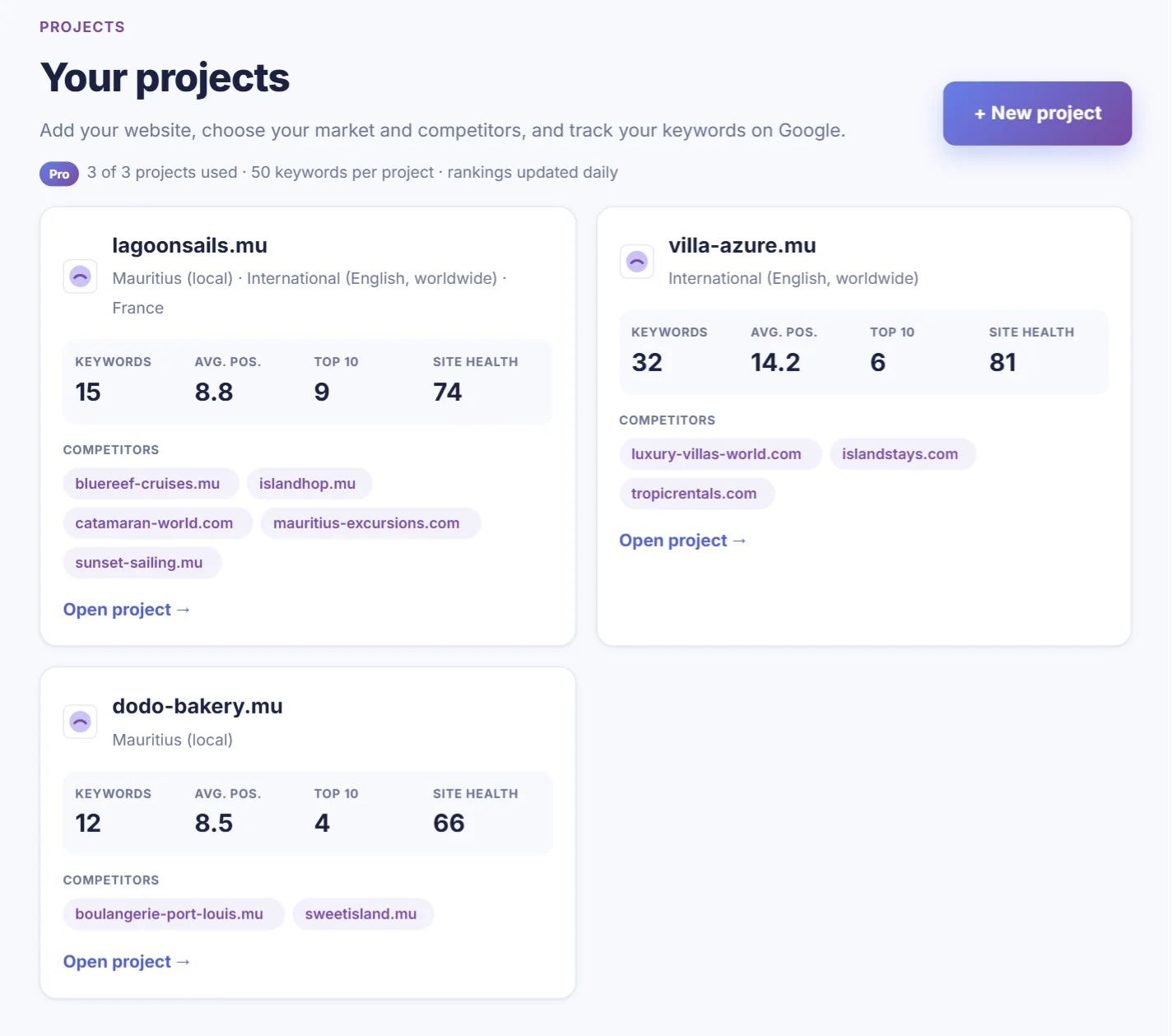
Projects & rankings: track your Google positions against competitors
Create a project, choose Mauritius or an international market, pick your competitors and keywords, and follow your Google rankings over time.
A project is your website plus the competitors and keywords you want to watch. Once it's set up, CrazyDodo checks Google for you automatically and shows where you rank, where your competitors rank, and whether you're moving up or down.
1Create your project
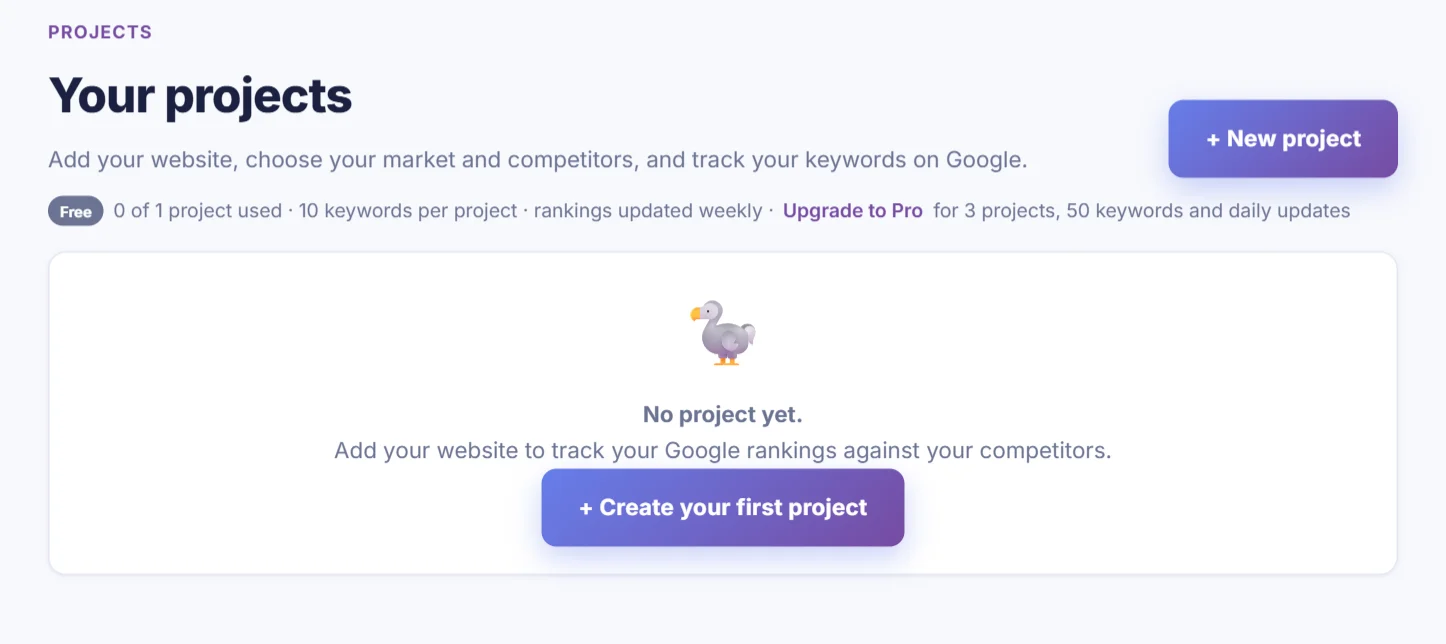
Sign in and open Projects & Rankings in the left menu. Click + Create your first project.
2Choose your market
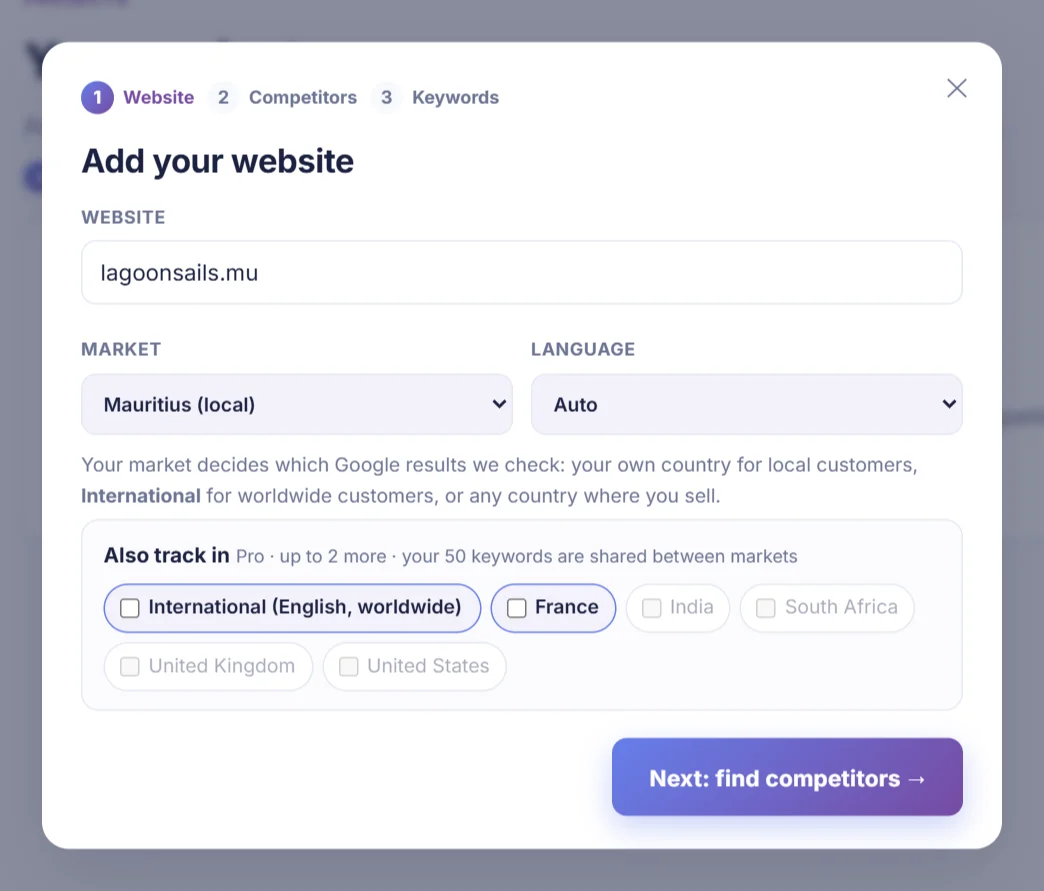
Enter your website and choose the market, the version of Google your customers use:
- Mauritius (local): for businesses selling to people in Mauritius. Results come from Google Mauritius.
- International (English, worldwide): for tourism, exports or online services aimed at visitors from abroad.
- A specific country, such as France, the UK or South Africa, if that's where your customers are.
CrazyDodo pre-selects the country you're in, so change it if your customers are elsewhere. Leave the language on Auto unless your customers search in another language, for example French for France.
Selling in several countries? On Pro, tick up to two more markets under Also track in, for example International and France. Your keywords are checked in each market. The plan's 50 keywords are shared between the markets, so with three markets you can track about 16 keywords in each. You can also add or remove a market later from the project page.
Click Next: find competitors. CrazyDodo now looks at Google in your main market, which can take up to a minute the first time.
3Pick your competitors
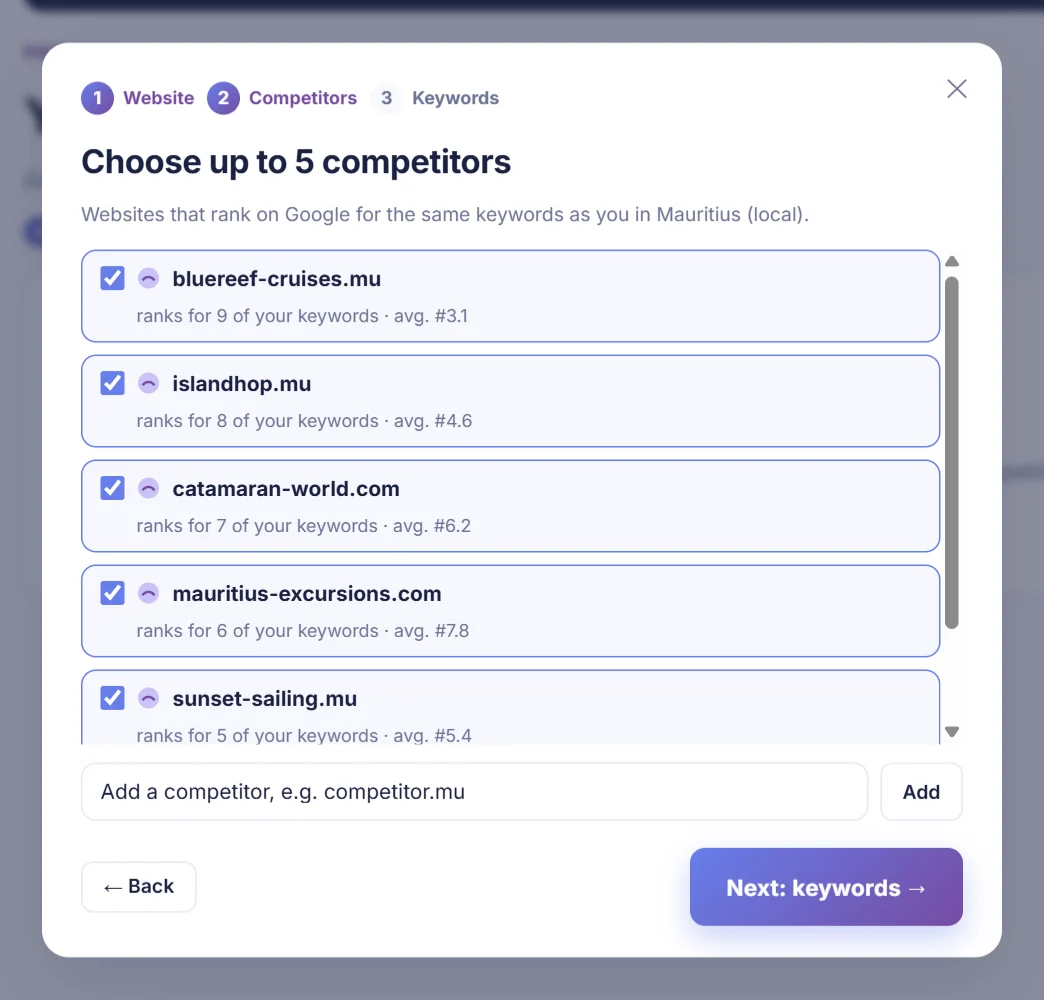
The suggestions are websites that rank for the same searches as you in your market. Under each one you'll see how many of your keywords it ranks for and its average position. The best matches are ticked for you.
- Untick anything that isn't a real competitor, such as a directory or a news site.
- Add a competitor you know by typing its website and clicking Add.
4Choose your keywords
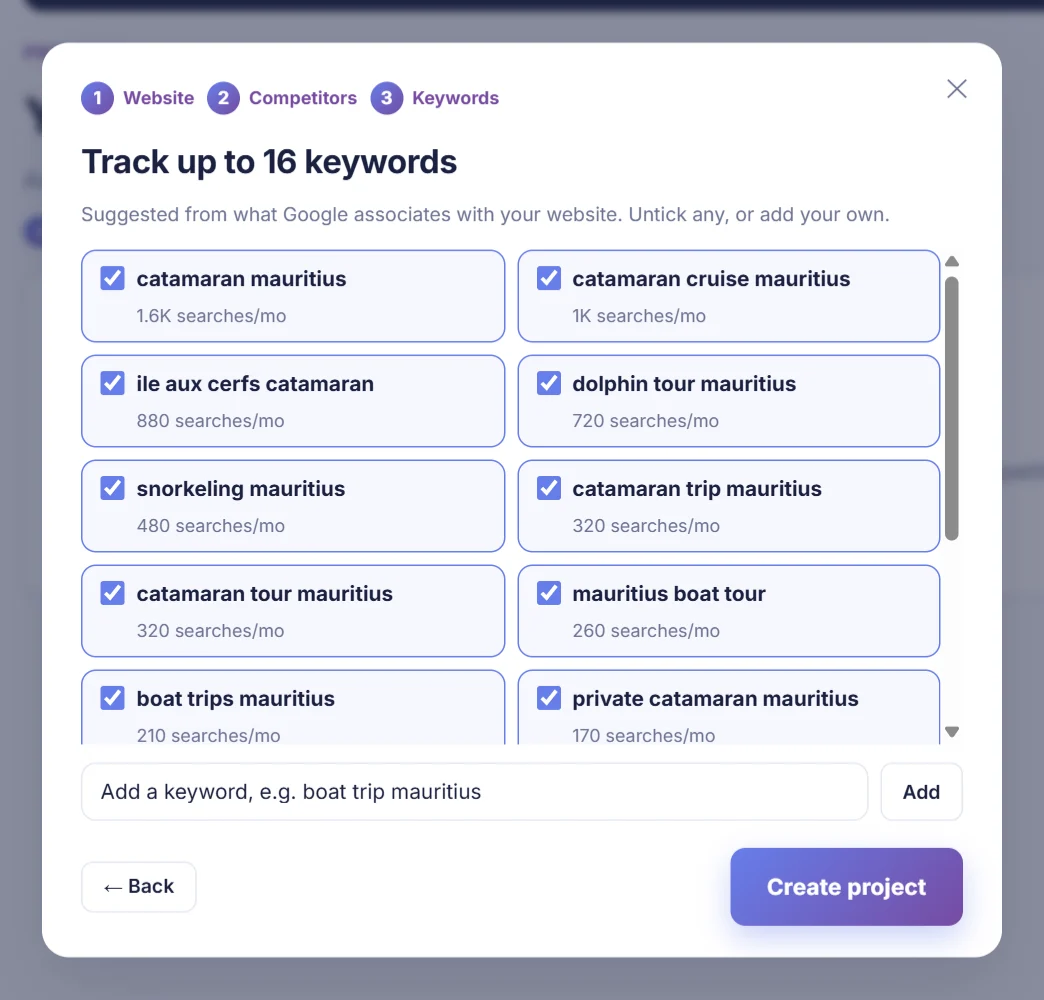
These are searches Google already connects with your website, with how many times a month people search them. Keep the ones that describe what you sell, and add your own: think about what a customer would type, such as catamaran cruise mauritius rather than your brand name.
Click Create project. The first 10 keywords are checked straight away; any others appear within about an hour.
5Read your project dashboard
The buttons under the project name switch between your markets. Every number and table below shows the market that's selected. On Pro, + Add a market starts tracking your keywords in another country, and Remove stops tracking the selected one (your main market stays).
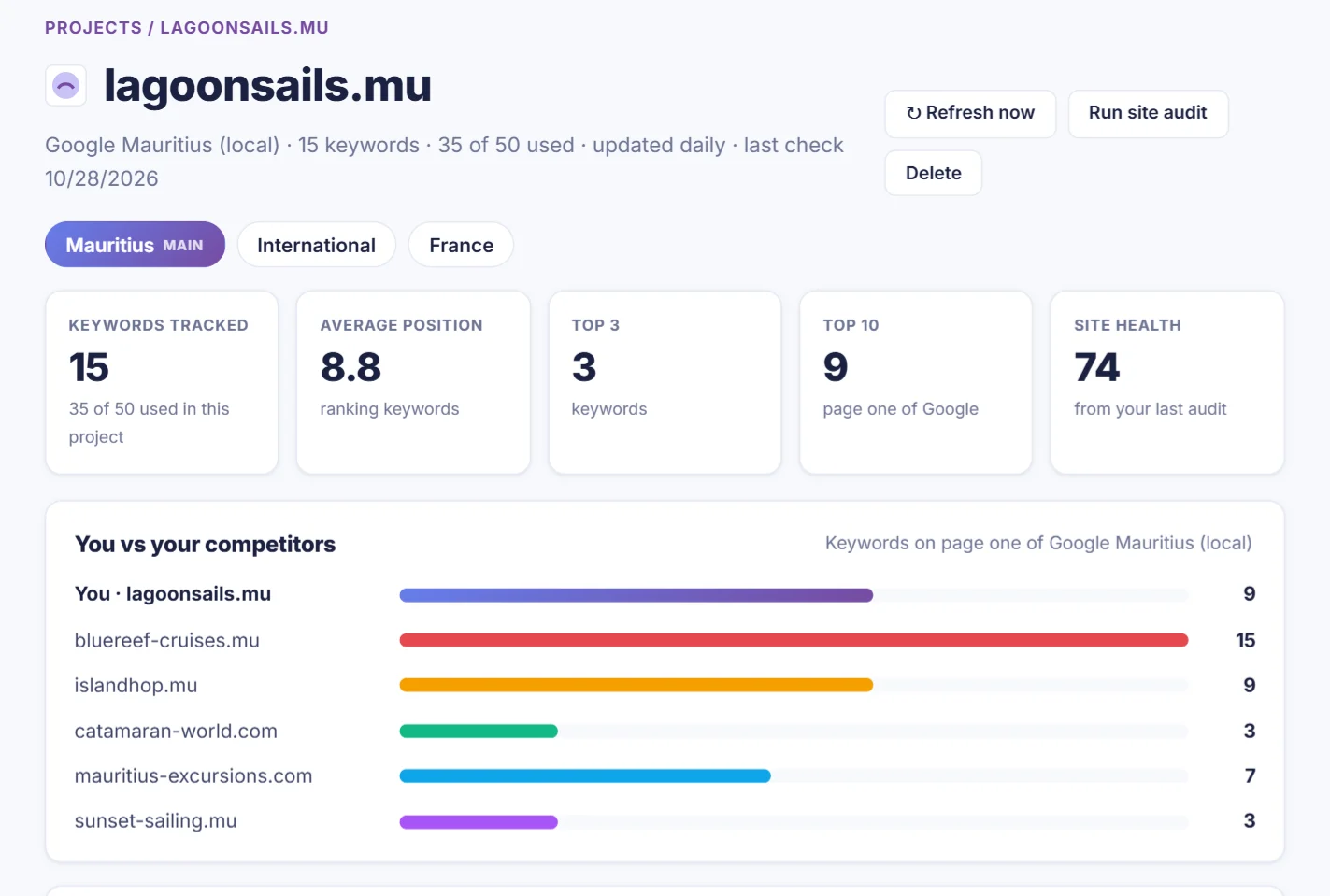
- Keywords tracked: how many of your plan's keywords you're using.
- Average position: across the keywords where you appear in the top 30. Lower is better.
- Top 3 and Top 10: keywords where you're in the first three results, and on page one.
- Site health: the score from your last site audit.
- You vs your competitors: how many of your keywords each website has on page one. It's the quickest way to see who is winning your market.
6Use the rankings table
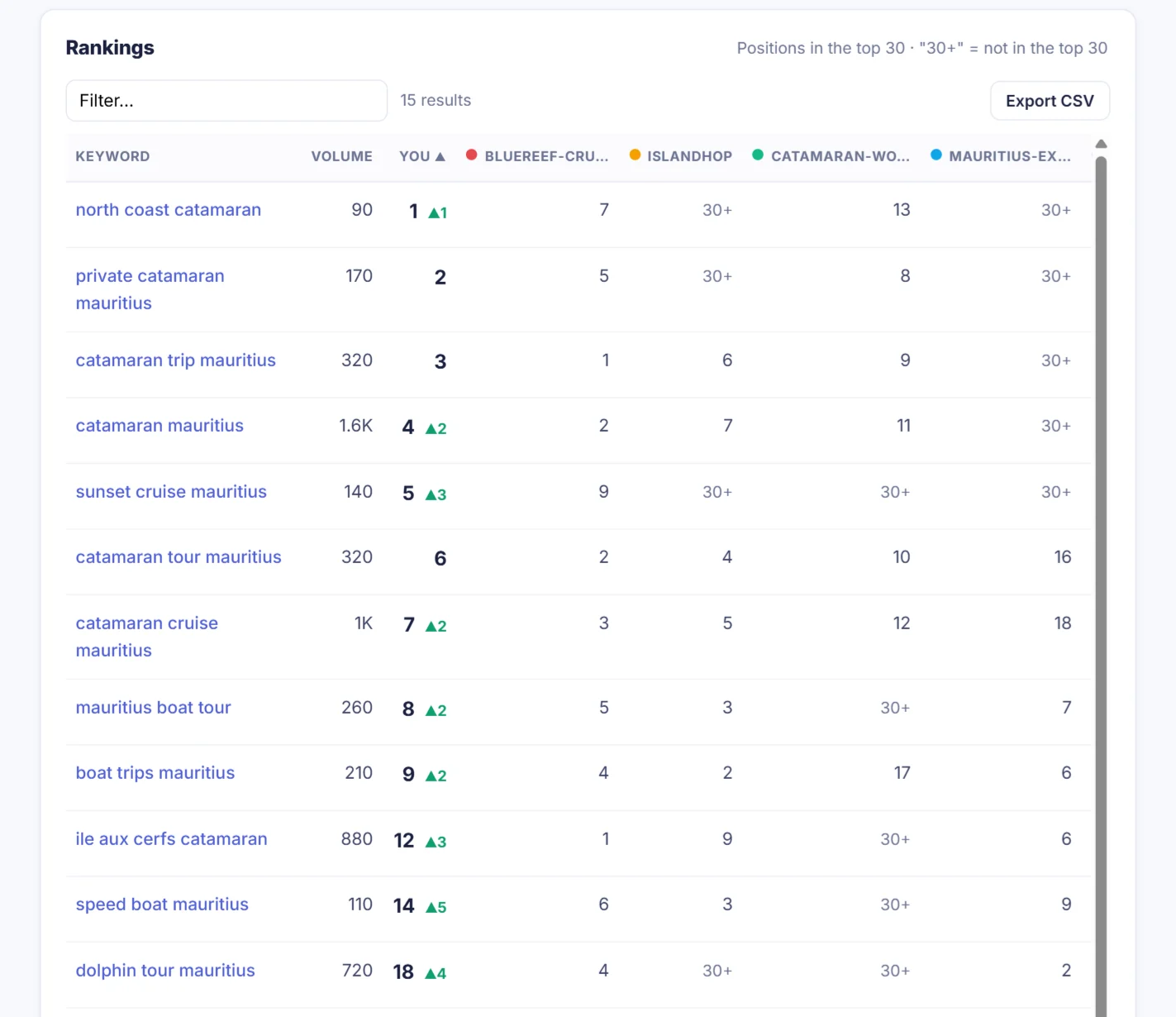
- You: your position on Google. A green arrow shows places gained since the last check, a red one places lost.
- 30+: you're not in the top 30 results yet. A … means the first check is still running.
- Competitor columns: where each competitor ranks for the same keyword. Hover a column title to see the full website name.
- Your page: which page of your site Google shows. If it's the wrong page, that's a sign to improve the right one.
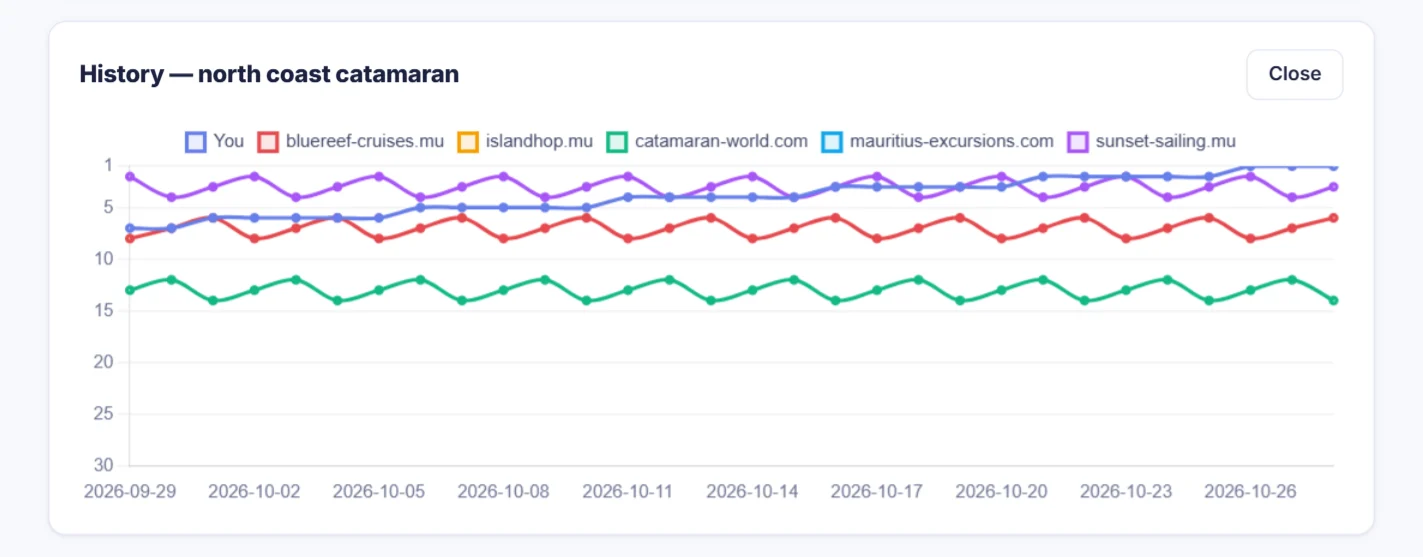
- Click 📈 for the history chart of a keyword, and ✕ to stop tracking it.
Use Filter to find a keyword and Export CSV to open the table in Excel or Google Sheets.
7Keep your project up to date
- Add keywords one per line in the box under the table.
- Competitors: remove one with ✕, add another, or click Suggest for my market for fresh ideas. Click Analyze next to a competitor to open its traffic and backlinks in the Traffic Analyzer.
- Refresh now (Pro) checks every keyword again immediately. Free projects update automatically every week.
- Run site audit crawls your website so the Site health box fills in.