Site audit & action plan: find and fix the technical problems
Crawl your website, understand errors, warnings and notices, fix them in the right order, and track your site health score.
The Website Analyzer checks one page. The Site Audit crawls your whole website page by page, like Google does, and lists every technical problem with why it matters and how to fix it. The Action Plan then turns your scan into a to-do list you can tick off.
1Run your audit
Sign in, open Site Audit in the menu, enter your website and click Start audit. CrazyDodo starts at your home page and follows your internal links, the same way Google discovers your pages. A progress bar shows the pages found. Most small websites take one to three minutes.
2Read your site health
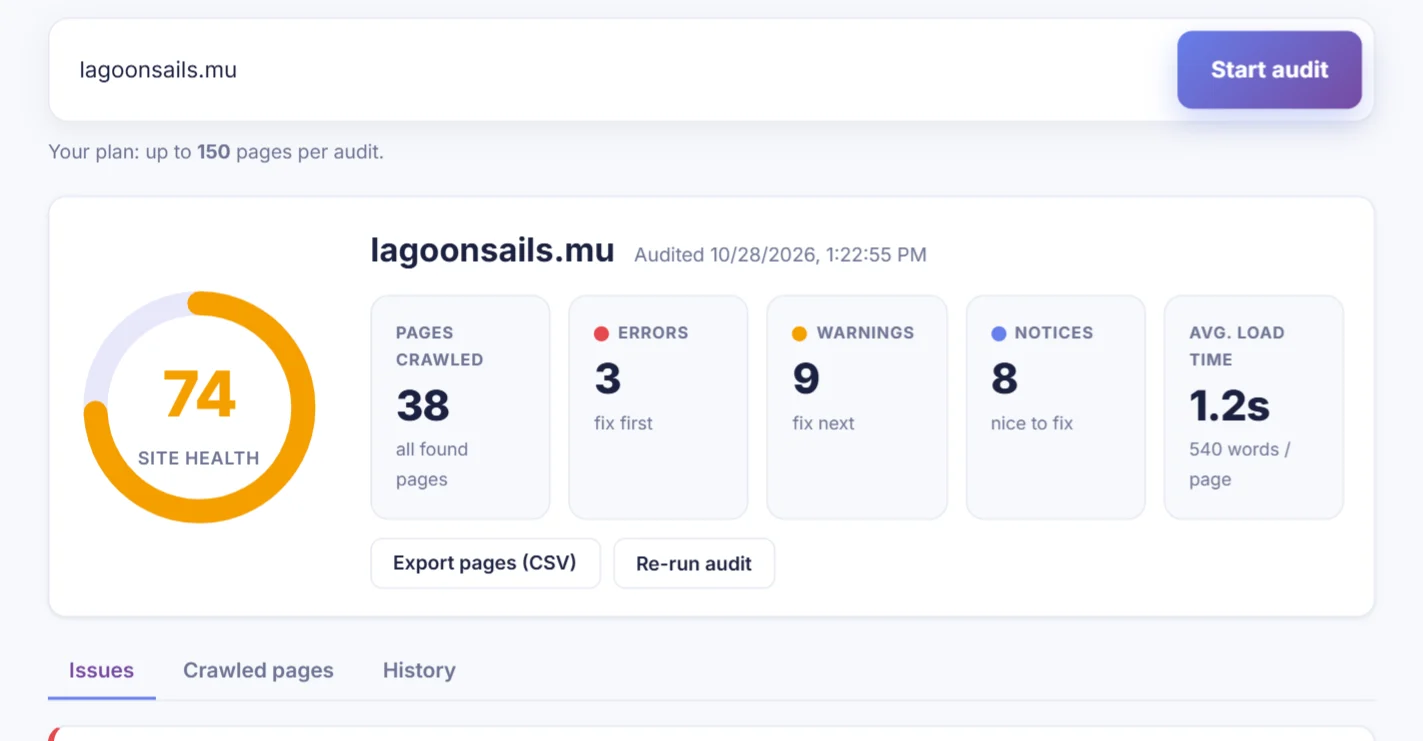
The site health score runs from 0 to 100. Errors weigh the most, warnings less, and notices don't lower the score. Aim for 80 or more. Next to it you'll see:
- Pages crawled: if it says plan limit reached, your site has more pages than your plan audits.
- Errors : fix first. They stop pages from working or ranking.
- Warnings : fix next. They hold your rankings back.
- Notices : nice to fix when you have time.
- Average load time and words per page.
3Fix the issues in the right order
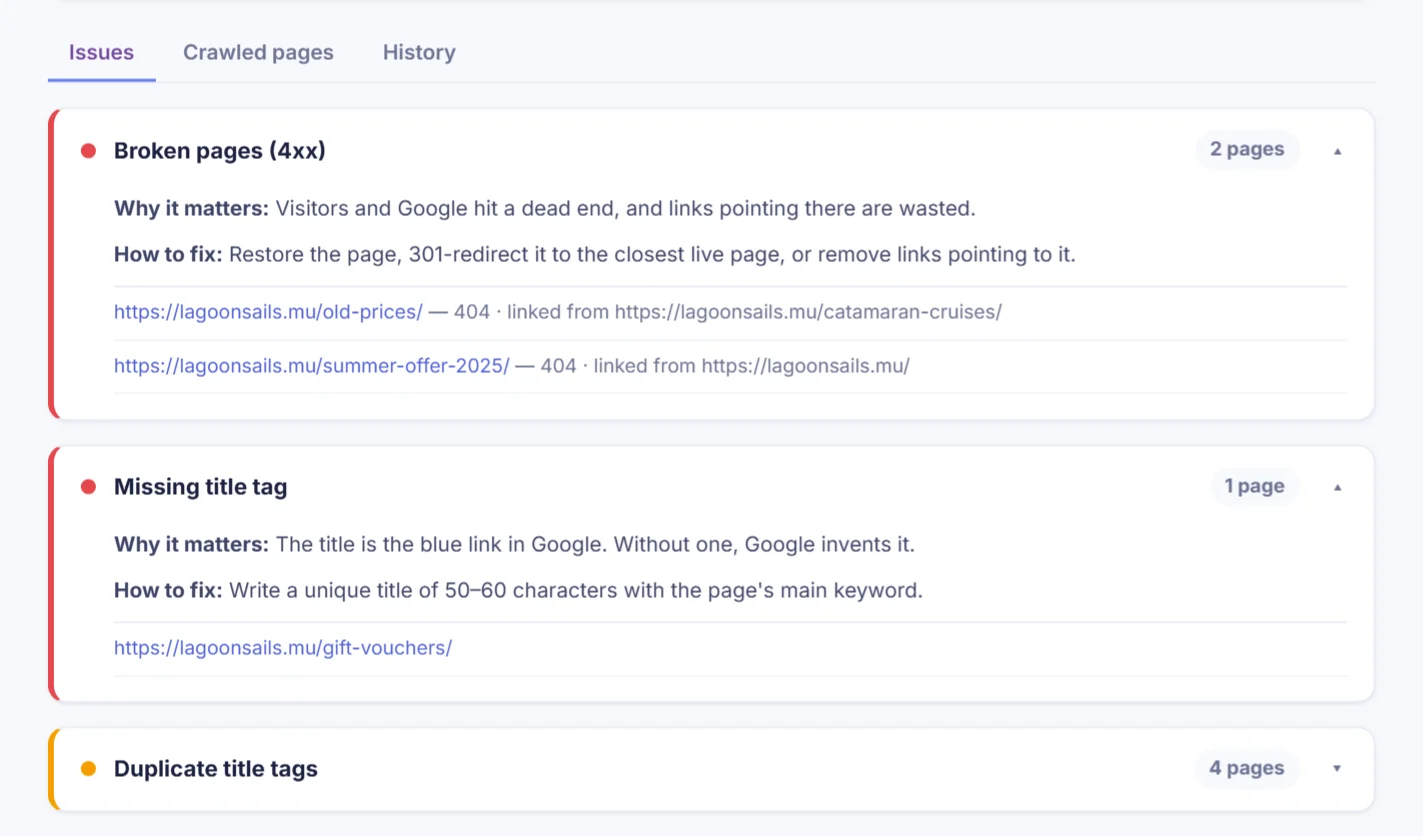
The Issues tab is sorted with errors first. Click an issue to open it. You'll see:
- Why it matters, in plain language.
- How to fix: what to change in your website editor.
- The list of pages affected, with details such as the page that links to a broken URL.
The audit runs 24 checks, including broken pages and server errors, redirects, missing or duplicate titles and descriptions, missing H1 headings, thin content, images without alt text, slow pages, pages blocked from Google and pages that aren't mobile-friendly.
4Check every crawled page
The Crawled pages tab lists every page with its status code, title, word count, load time and depth (how many clicks from the home page). Important pages should be within three clicks of your home page. Click Export pages (CSV) to share the list with your web developer.
5Re-run and track progress
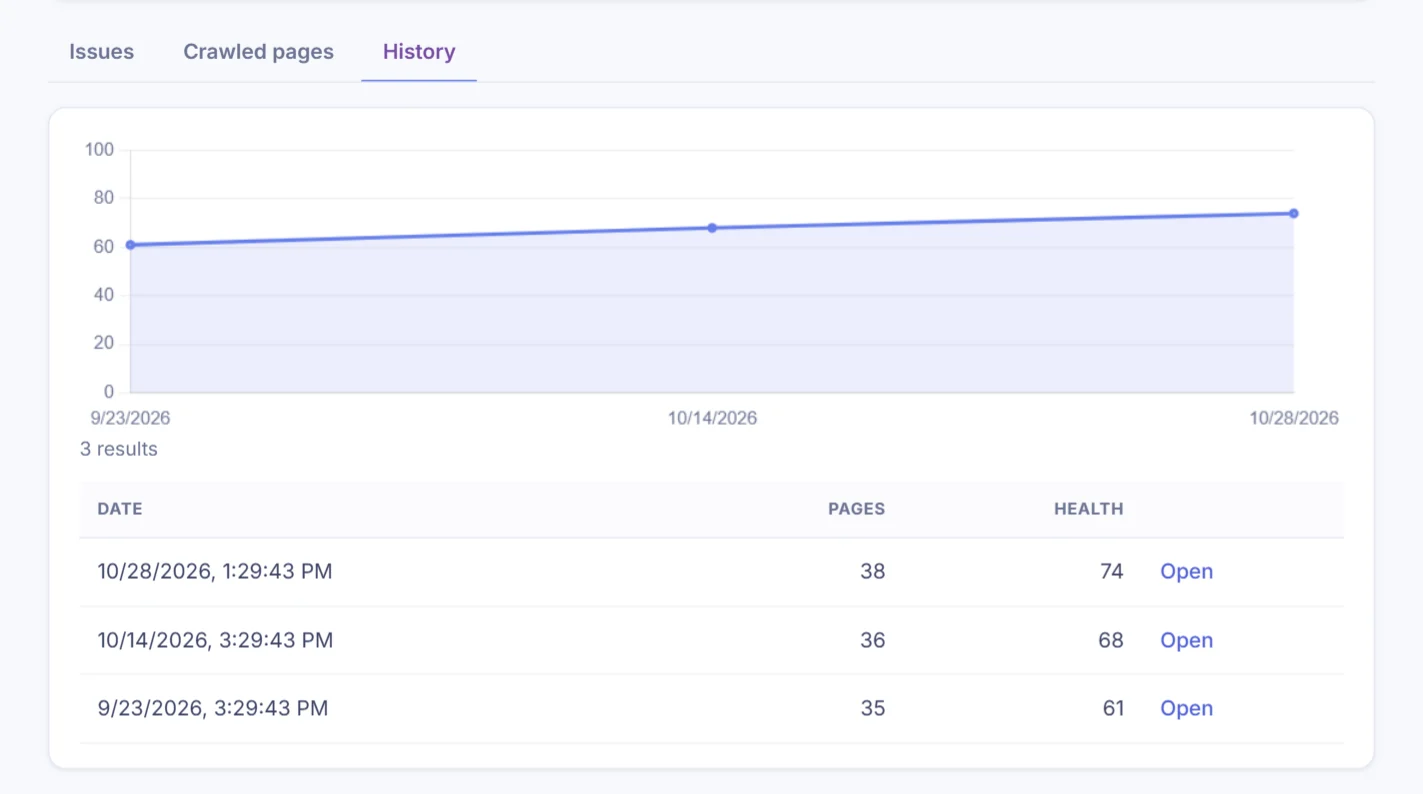
After fixing issues, click Re-run audit. The History tab charts your health score over time, and you can open any earlier audit to compare. If you have a project for the same website, its Site health box shows your latest score.
6Work through your Action Plan
The Action Plan (in the menu, with Pro or course access) turns the scan of your website into a prioritised to-do list:
- Recommendations are grouped by priority: Critical, High, Medium and Low.
- Open one to see why it matters, the fix steps and the expected impact.
- Mark each one In progress or Done. The progress ring shows how much of the plan you've completed.
- Click Re-scan after your changes, or Export CSV to share the plan with your team.
To create the plan, run a scan of your website from the Website Analyzer first while signed in; the Action Plan uses that scan.